Texture Library
Manage PBR textures, and one-click to create materials.
Texture Library is a texture and PBR material library browser for Cinema 4D. It manages multiple local folders, presents assets in a thumbnail grid, filters them by name, and creates materials for the active renderer from either a single texture or a complete PBR set.
The plugin supports Arnold, Redshift, Octane, Corona, and V-Ray. Before creating a material, select the intended renderer in Cinema 4D and make sure that renderer is installed correctly.
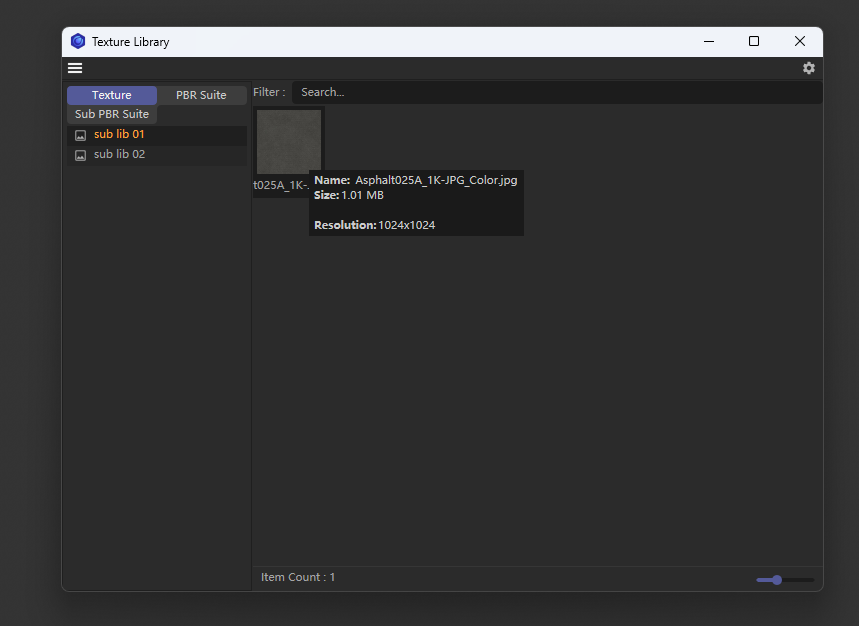
Main Window
The main window contains the asset type and library list on the left, the asset card area on the right, and an item count and card-size slider along the bottom.
Asset Types
Texture: Each library path is one folder. Supported image files in that folder appear as individual cards.
PBR Suite: Each library path contains one or more named PBR sets. The plugin identifies maps such as diffuse, normal, roughness, metallic, and displacement.
Sub PBR Suite: Each direct child folder is treated as a material package. Use this mode for a one-material-per-folder layout.
When you change asset type, the plugin restores the last selected library for that type. Clicking a library name loads it and clears the current search text.
Search and Card Size
Filter: Type text to filter the current library by file or package name. Matching is case-insensitive.
Size slider: Changes card previews between the 32, 64, 96, and 128 pixel steps. The selected size is saved automatically.
Item count: Shows the number of cards currently visible after filtering.
Asset Cards
Hover: A texture card shows its name, file size, and resolution. A PBR card shows its name, total package size, and recognized map types.
Single-click: Selects the card and clears the selection from sibling cards.
Double-click a texture: Creates a material for the active renderer and uses that texture as the base color.
Double-click a PBR package: Identifies the package maps and creates a PBR material for the active renderer with the current settings.
Drag a texture: Drags the original texture path to Cinema 4D controls or managers that accept image-file drops.
Drag a PBR package: Drags the package path data. A Sub PBR package uses its recognized primary texture path. Whether the drop is accepted depends on the target Cinema 4D control.
Asset cards currently have no context menu. Context commands are available on the library list at the left.
Library Context Menu
Right-click a library name in the left list to access:
Open Folder: Reveals the library directory in Finder or the system file manager.
Rename: Renames the library directory on disk and updates its saved plugin path. The new name cannot be empty; a message is shown when the operation fails.
Generate Thumbnail: Scans the selected library, creates previews for missing or oversized thumbnails, and refreshes the cards when finished.
Double-clicking a library name reloads its card contents.
Settings
Click the gear button at the top of the main window to open Settings. The parameters below follow the same order and grouping as the interface.
General Settings
Create Preview On Start, enabled by default: Checks thumbnails when the plugin opens or a library is selected. Missing, oversized, or unsuitable cached previews are generated as 256-pixel JPG files in the library's
Thumbnailsfolder.Use Displacement, enabled by default: Connects a recognized displacement map when creating a material from a PBR package. It does not create a map when none exists.
Use Triplanar, disabled by default: Enables the triplanar workflow when creating a material for a supported renderer.
Only Filename (Drag), disabled by default: Drags a full path when off and only the final file name when on. Some drop targets cannot locate the source when only a file name is supplied.
Watch Library Folders, disabled by default: In the current version, the effective watch scope is determined by the Watch Folder controls for each path and group below.
Texture Library Paths
Adds folders containing individual image files.
Each row displays the complete path.
Watch Folder controls whether that path belongs to the watched-path list.
X removes the path from the plugin without deleting the folder from disk.
Add opens a folder picker.
Watch Folder beside Add determines whether a newly added path is watched immediately and can also toggle existing paths in this group as a batch.
PBR Library Paths
Adds folders containing multiple PBR sets. Its controls follow the same order and behavior as Texture Library Paths.
Sub-PBR Library Paths
Adds folders whose direct child folders represent individual material packages. Its controls follow the same order and behavior as Texture Library Paths.
Closing Settings makes the main window reload the paths and settings and refresh its library list.
Preview Management
Preview files are stored in the Thumbnails folder inside each library. Enable Create Preview On Start to fill in missing previews automatically, or use the library context menu to generate them manually.
The library folder must be writable to store new thumbnails. A read-only library can still expose its source files, but preview generation may fail. Before renaming a library, make sure no other application is holding the folder open.
Changelog
- 1.0.1 - Fix known issues
- 1.0.0 - Release