Connector
A flexible tool that connects with a spline elements of an object with elements of the same or different object.
This generator connects any elements (Points, Edges, Polygons) from a source object to any elements of a target object or the center of multiple objects.
These connections are called connection methods and are:
Point-to-Element - Will connect Points of the Source Object to elements of the Target Object.
Edge-to-Element - Will connect Edges of the Source Object to elements of the Target Object.
Polygon-to-Element - Will connect Polygons of the Source Object to elements of the Target Object.
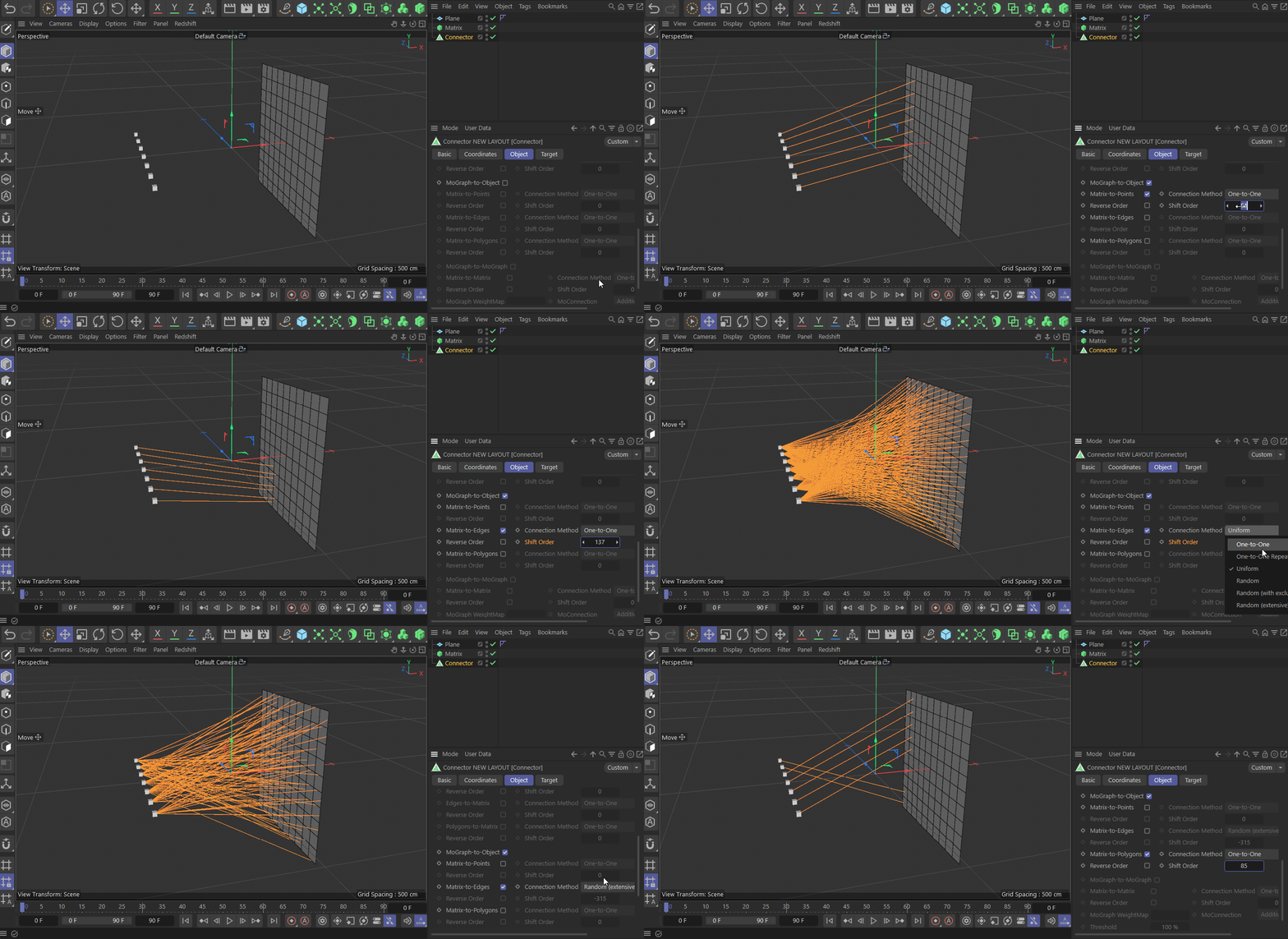
Object-to-Mograph - Will connect elements of the Source Object to MoGraph instances of the Target MoGraph Object.
Mograph-to-Object - Will connect MoGraph instances of the Source MoGraph Object to elements of the Target MoGraph.
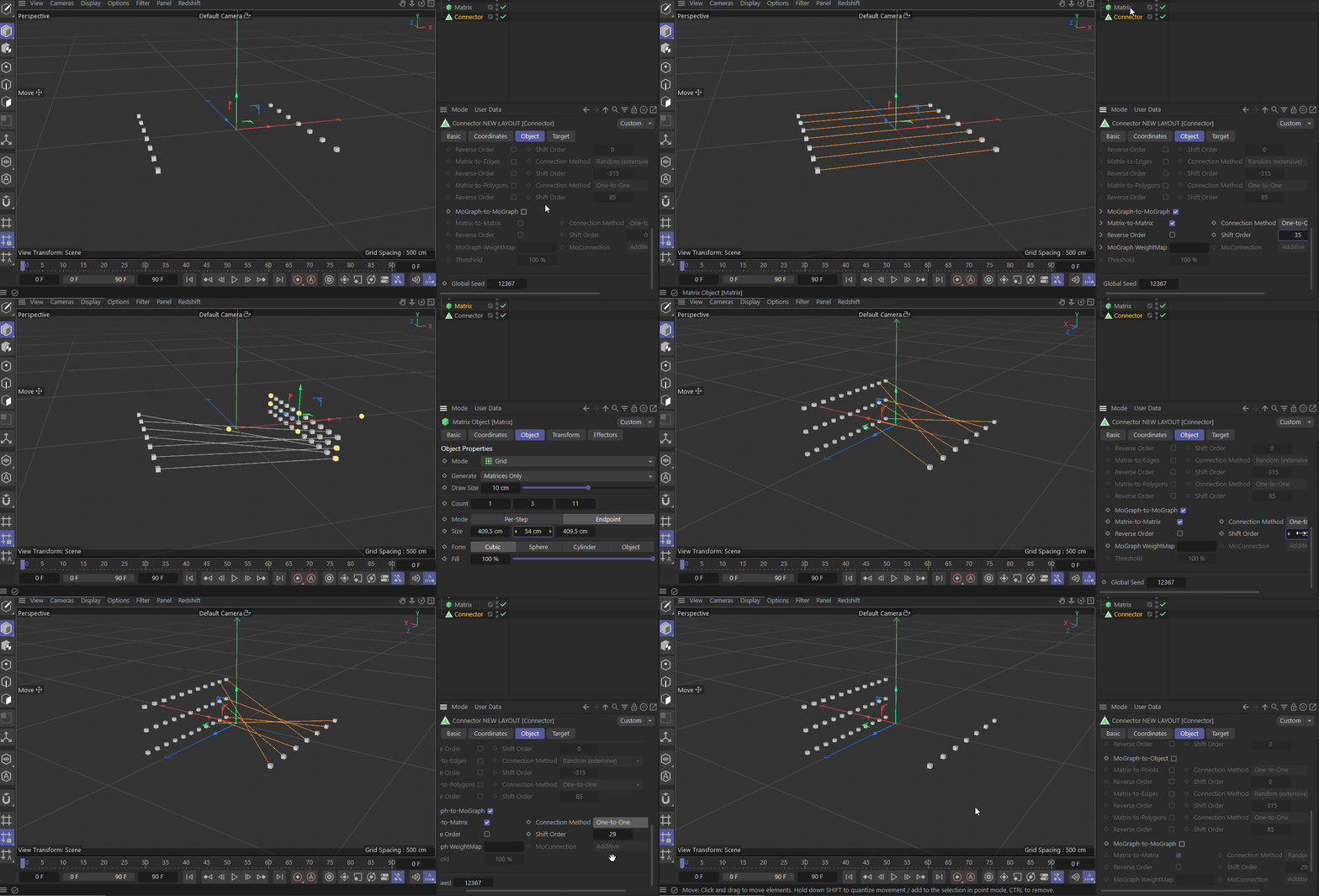
Mograph-to-Mograph - Will connect MoGraph instances of the Source MoGraph Object to MoGraph instances of the Target MoGraph.
Max Connections From Source - limits the number of times a certain element of the source object will be connected to an element of the target object.
Looks complicated but it's very intuitive. The Object tab controls what elements of the Source Object should be connected to what elements of the Target Object and how.
The Target Tab defines the Target Object/objects and the way the elements of the Source Object will be connected.
All connection methods have the same 6 options.
-
One-to-one: Will connect an element of the source object with an element of the target object with the same ID.
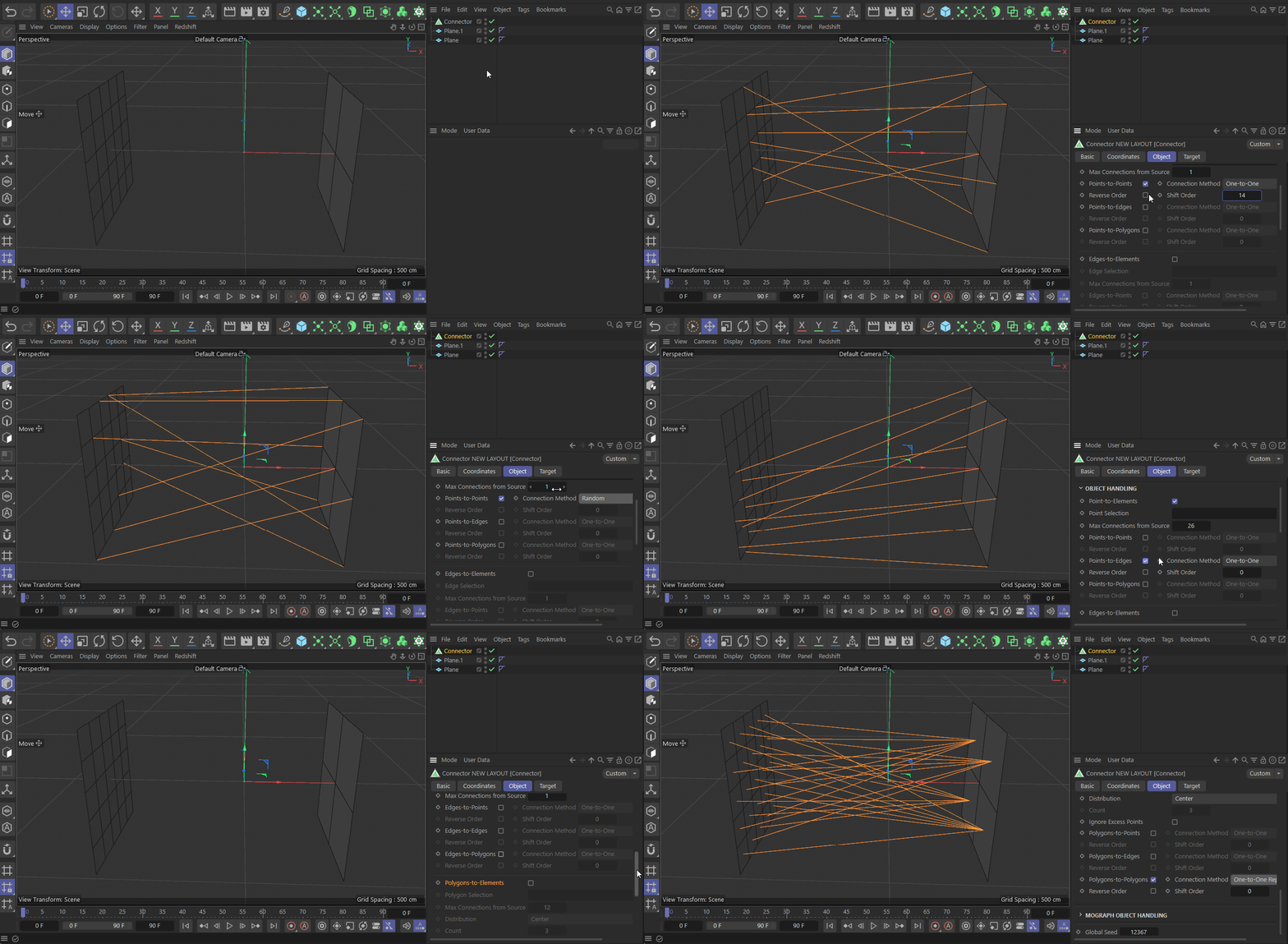
Random Shift will add a small +/- variation to the corresponding target connection. This value defines the neighboring indexes of each target connection. This is intended to be used on source and target objects that are very similar to add small randomness to to the opposite connection of elements so this attribute is mostly useful for small values about 1-3 as larger values will look like the random methods.
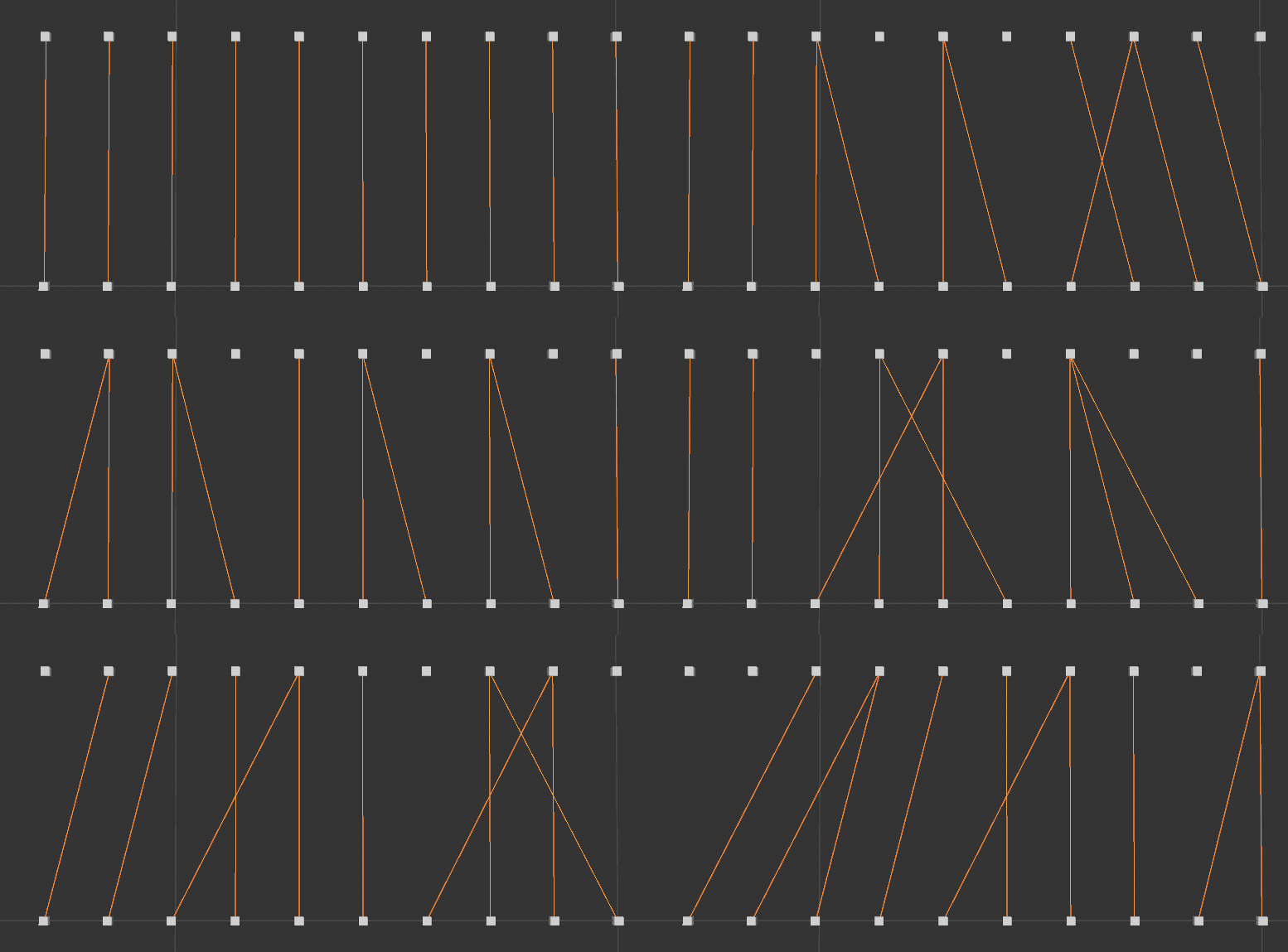
One-to-one Repeating: This is similar to the previous but in this case if the elements of the source object are fewer that the target object the algorithm will continue to connect elements continuing from the first element again of the source object until all elements of the target object have been associated with an element of the source object.
Uniform: Will uniformly spread the connections from the source object to the available targets. For example if there are 5 source points to be connected to 10 target points then this is how they will be connected:
0 - 0
1 - 2
2 - 4
3 - 6
4 - 8
If targets are less than the sources then some sources will be connected multiple times.Random: The algorithm will randomly choose an element of the chosen type from the source object and connect it to a random element of the same type of the target object. This will be executed X number of time were X is the number of elements on the source object.
Random with Exclusion: Same with the previous but this time each time an element from the source object is associated with a random element of the target object, it's no longer available to be chosen again the next time the algorithm choses a random element from the source object.
Random Extensive: This is similar to the Random with Exclusion but this time there is a check to see if every element of the source object and target object have been associated at least one time with the other object. If there are points with no associations the algorithm will run again but only for those points. The process repeats until there are no unassociated elements for both source and target object. There is a possibility that all elements from the source object are connected with elements of the target object but not all elements of the Target objects are connected to elements of the source object, in this case as it is already mentioned the algorithm will keep randomly connecting elements from the source object to the target object until those unassociated elements of the target object eventually are connected, but there is the possibility that this prosses will never end because the Max Connections from Source keeps preventing elements from being connected. In this case the algorithm will have a checking mechanism that keeps track how many times an element from the source object is associated with an element from the target object. If all elements of the source object have reached the number of associations defined by the Max Connections from Source then the algorithm stops.
An element from the source object can connect to the Edges of the target object with several ways. The Edges option will connect it to both ends of the edge while the Uniform will connect it to intermediate points excluding the end-points.
Similarly elements of the source object can be connected to the polygons of the target objects with several ways.
In Version 2.0.0 Vertex Maps and Weight Maps can be used on the Target Object Tab. These create an additional weighted randomized draw filter. The greater the weight value the greater the chances of that connection being drawn.
In Version 2.0.0 three new tabs have been added.
Connection Type
Now there are two more ways to connect elements.
Bezier - Elements are connected through curved lines
Source and Target Points have attributes related to the tangent on those points.
Length - The length of the tangent.
Orientation - Defines the orientation of the tangent based on 5 options.
End Point - The tangent is oriented towards the end-point of the connection.
Local Axis - The tangent is oriented parallel to one of the Local Coordinate Axis of the source or target element.
Global Axis - The tangent is oriented parallel to one of the Global Coordinate Axis.
Origin Normal - The tangent is parallel to the normal of the source or target element. In case of objects and instances it’s their local Z axis.
Custom - An object can be linked to be used as a target for the tangent.
Random Deviation - Each tangent will be slightly rotated around it’s initial Orientation.
Arc - Elements are connected through an arc.
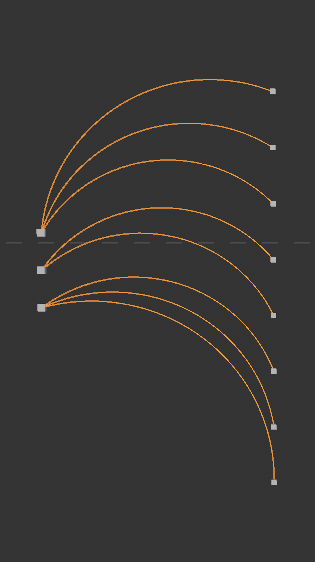
Draw Up Circle - Will draw the top half of a circle connecting the two elements.
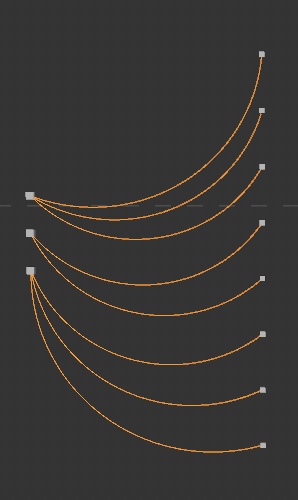
Draw Down Circle - Will draw the bottom half of a circle connecting the two elements.
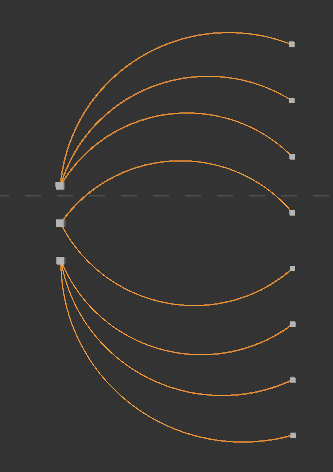
Auto Direction Draw - Will decide which part of the circle will be drawn based on the relative position of the two elements.
Tension - Defines the position of the center of the circle.
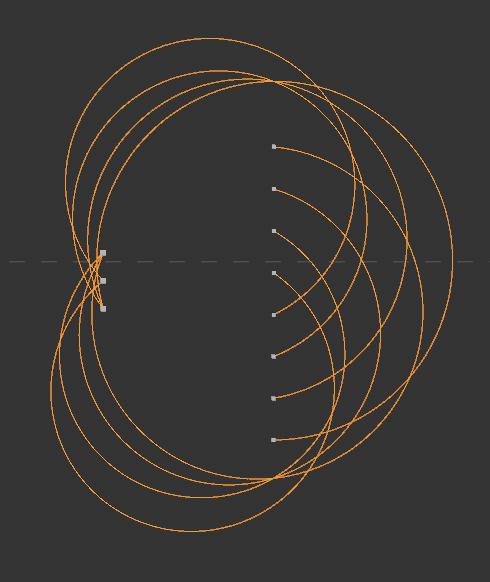
Tension -300%
Up Axis - Defines the plane on which the circle will be drawn.
Sequencer
This tab allows users to draw connections sequentially.
There are 2 types of sequences:
Manual Sequence
In this mode the user can define a specific sequence in which the connections will be drawn based on the available connections from the Object and Target tabs.
”Default” means that the connections will be drawn in sequence already decided during generation.
Any sequence of T(ID) and S(ID) separated by a comma will instruct the Sequencer to step on a connection that begun with an element of a certain ID or ended on an element with a certain ID.
Activation Mode:
One per Step - Will draw only one connection per step.
Accumulatively - Will keep connections drawn prior to the current step.
Step - Defines the number of steps the Sequencer will skip to reach a certain connection draw.
Sequence Mode - It’s like a playback mode. Defines what will happen after the Sequencer has reached the final step of the connection sequence.
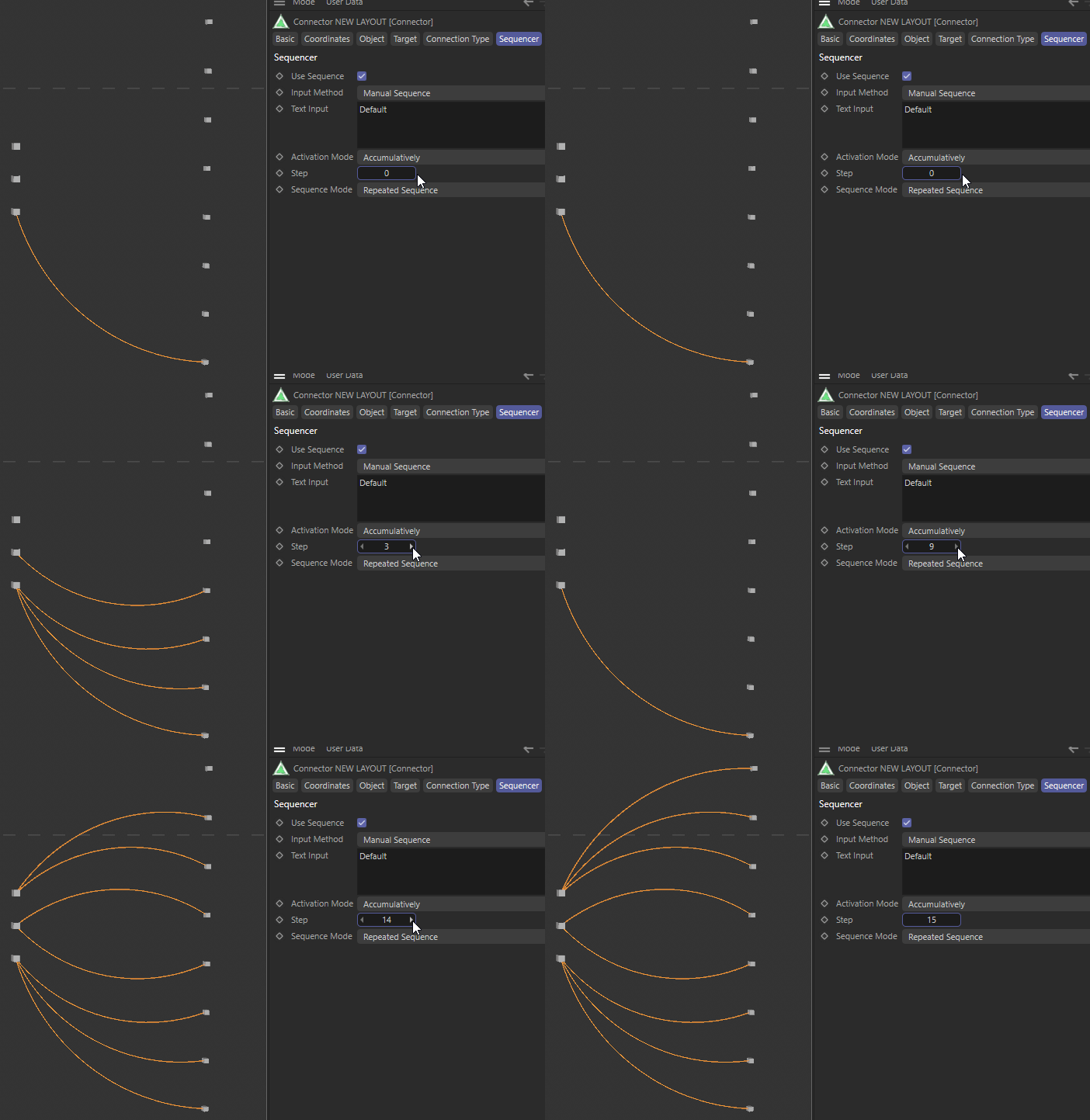
Field - This will create an internal sequence based on the way C4D decides to create a selection array from a Field. Imagine that you create a selection of all the generated connections and use a Field on them to make them visible.
Restrictions
Particle Groups - Here you can add specific particle groups when using the Connector to connect particles linked to Cloners and Matrix objects. This way you can connect instances of specific particle groups.
Connection Length - These attributes will filter out connections with length exceeding a certain value or that don’t meet a value.
New in Version 2.1.0
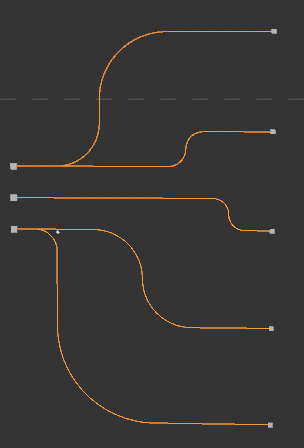
Angular Spline Type - Creates 4-point connections on 90 degrees turns.
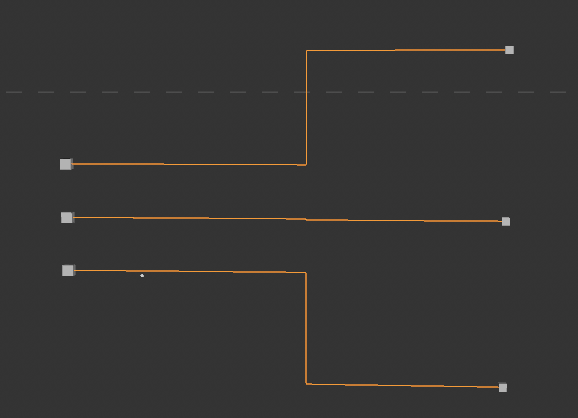
Angle - Defines the start and end angle of the connection
-
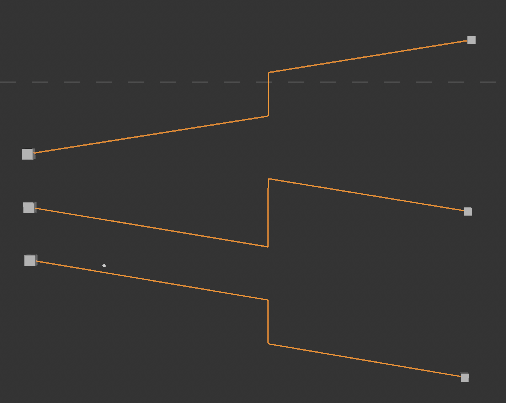
Position Offset - Defines the distance of the turn
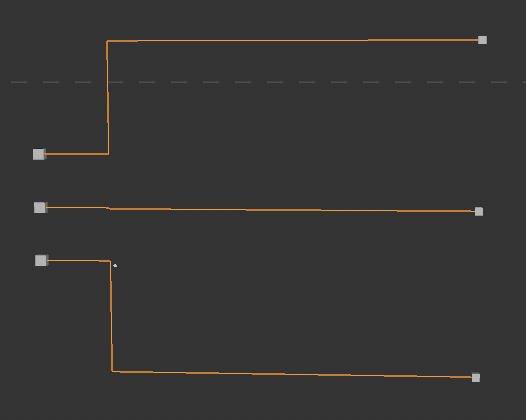
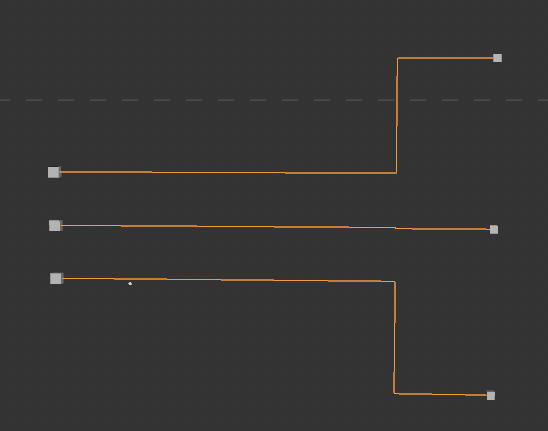
Auto Position Offset - Will automatically manage the Position Offset of each connection
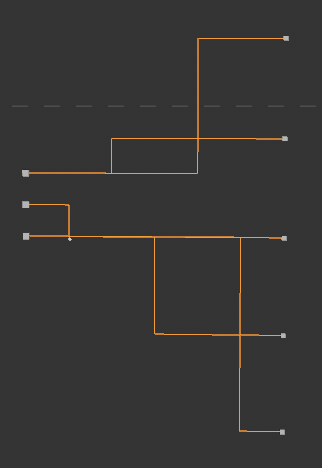
Reverse Auto Positioning Mapping - In case the Auto Positioning has many intersecting connections
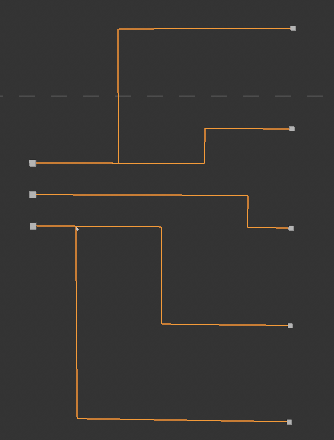
Flat Chamfer - Chamfers turns
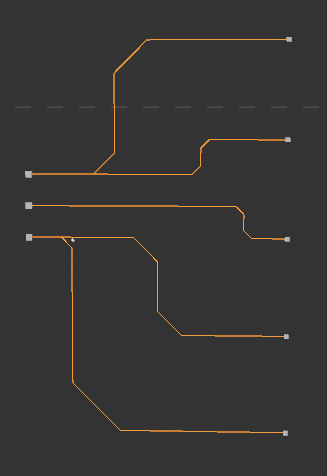
Chamfer - An additional Chamfer layer for rounded corners
Up Axis - By Default Y, perfect for most cases.
Changelog
- 2.1.0 - Angled Connection Type with angle, turn position offset and chamfering parameters.
- 2.0.0 - Chinese locality - Bezier and Arc connections - Sequential connection draw steps - Restrictions based on Particle Groups and connection length - Vertex maps and Weight maps add an additional random draw step