Drop To Surface
Place the selected objects onto the surface of other objects, eliminating the need to manually align their positions and orientations. Similar to the `Place Tool`, but without having to consider orientation.
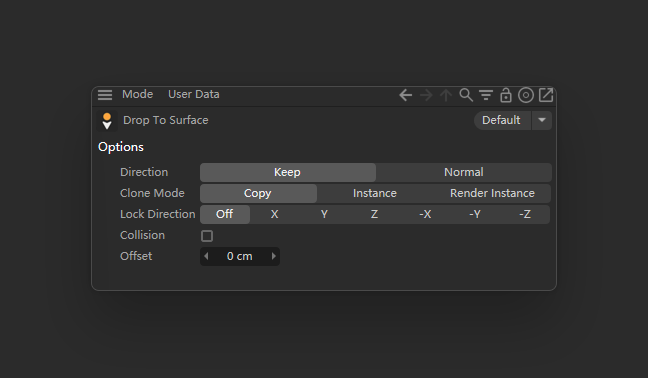
Drop To Surface
Place selected objects as one group onto other object surfaces by their actual geometry bounds, without manually matching position and orientation. It works like Cinema 4D's Place Tool, but without having to account for orientation.
Short Description
Drop To Surface drags selected objects or lights as one group onto other model surfaces, with normal alignment, world-axis placement, offset, and Copy, Instance, or Render Instance cloning.
Features
Keeps the existing orientation or aligns the group to the target surface normal.
Locks placement to
X,Y,Z, or a negative axis while leaving the other world coordinates unchanged.Uses
Ctrlto clone and place as a Copy, Instance, or Render Instance.Offers collision placement for a closer point of contact on concave or irregular geometry.
Supports objects and lights, with the world XZ ground plane as a fallback in Collision mode.
Usage
Select one or more objects to place in the Object Manager or viewport.
Activate the Drop To Surface tool.
Drag over the target model surface and release when the preview reaches the desired position.
To keep the originals, hold
Ctrland click or drag to the target. The new clones become selected.
Press Esc during a drag to cancel and restore the original position. When not placing a selection, click an object to select it; use Shift-click to add it, or Ctrl-click an already selected object to remove it from the selection.
Options
Direction — Keep: Preserves the current orientation of the selected objects.
Direction — Normal: Orients the group from the surface normal at the drop point.
Clone Mode: Chooses
Copy,Instance, orRender InstanceforCtrlplacement.Lock Direction: With
X,Y,Z,-X,-Y, or-Z, movement is limited to that world axis and the other coordinates remain unchanged.Offuses normal surface placement.Collision: Finds the nearest point contact along the placement direction from the objects' geometry. While dragging, a surface marker follows the cursor; exact placement runs when the mouse is released.
Offset: Adds separation beyond the final contact position. The default is
0.
Notes
Selected objects and their descendants are ignored as placement targets.
If both a parent and its child are selected, only the parent is treated as a placement root; its hierarchy moves with it.
Standard placement uses geometry bounds. Enable Collision for a more realistic contact on concave or irregular shapes.
If the cursor does not hit a model in Collision mode, the tool attempts to place the selection on the world XZ ground plane.
Version
v1.0.0 — 2026-08-13
First public release.
Includes grouped object and light placement, normal alignment, axis locking, three clone types, and optional collision placement.
Changelog
- 1.0.1 Exclude disabled and editor-hidden hierarchy branches.
- 1.0.0 - First public release. - Includes grouped object and light placement, normal alignment, axis locking, three clone types, and optional collision placement.