TriPlanarQuickLink
This plugin allows you to batch connect or disconnect the **Scale, Offset, Rotation, and Blend Amount** properties of all **Tri-Planar nodes** in the current material through the context menu.
Main Features
Through the context menu, this plugin allows batch connection or disconnection of Scale, Offset, Rotation, and Blend Amount properties for all Tri-Planar nodes in the current material.
How to Use
Select and open the Redshift Node Material that needs to be processed.
-
In the Node Editor, select only one source node (the node you want to connect to the Tri-Planar nodes).
You do not need to select any Tri-Planar nodes. The plugin will automatically scan all Tri-Planar nodes in the current material.
Press the shortcut key assigned to "Tri-Planar Quick Link".
-
Select the required operation from the pop-up menu at the mouse position:
"Connect · Scale / Offset / Rotation / Blend Amount"
Connects the corresponding property."Disconnect · Scale / Offset / Rotation / Blend Amount"
Removes only the selected connection."Disconnect All"
Removes all Tri-Planar connections created by the current source node.
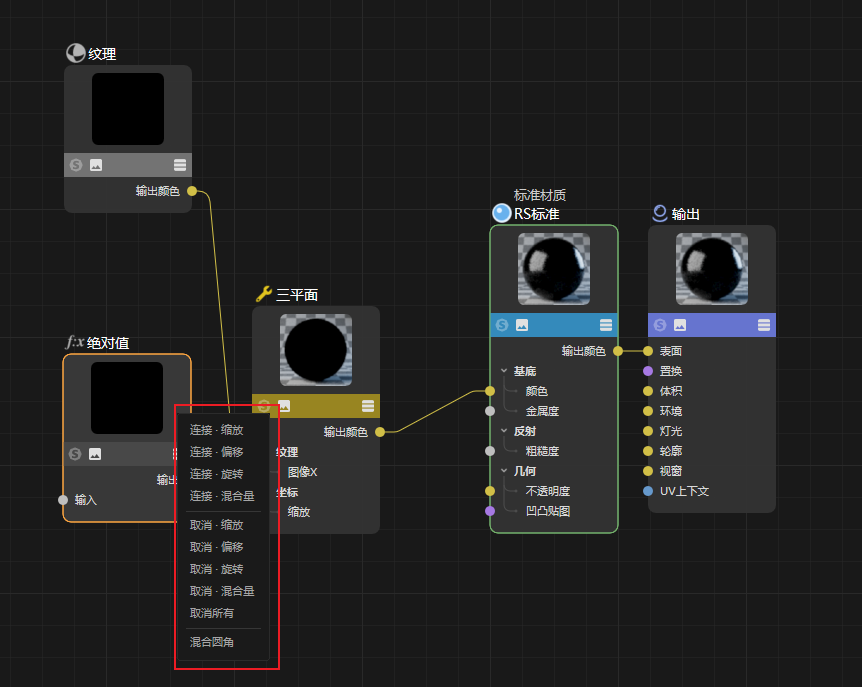
After a successful operation, no completion dialog will appear.
Error messages will only be displayed when the operation cannot be executed.
Function Details
Connect · Scale
Connects the selected source node to the Scale input of all Tri-Planar nodes in the current material.
If the target input already has an existing connection, it will be skipped.
Existing connections will not be overwritten.
Connect · Offset
Connects the selected source node to the Offset input of all Tri-Planar nodes.
Connect · Rotation
Connects the selected source node to the Rotation input of all Tri-Planar nodes.
Connect · Blend Amount
Connects the selected source node to the Blend Amount input of all Tri-Planar nodes.
Existing connections will remain unchanged.
Disconnect · Property
Disconnect · Scale / Offset / Rotation / Blend Amount only removes connections created by the currently selected source node.
Even if the target input is connected to another node, the plugin will not modify that connection.
Disconnect All
Checks all Tri-Planar node properties:
Scale
Offset
Rotation
Blend Amount
Only connections coming from the currently selected source node will be removed.
Other external connections will remain unchanged.
Round Corner Blending
Automatically adds Round Corners and Bump Blender nodes for Bump Maps directly connected to the RS Standard Material Bump Input.
If the same node structure already exists, the plugin will silently skip the operation.
Duplicate nesting will not occur.
Round Corner Blending Usage
Make sure a Bump Map node is connected to the current RS Standard Material Bump Input.
Select only the Bump Map node.
Press the plugin shortcut and select "Round Corner Blending".
-
The plugin will automatically perform the following operations:
Create a Round Corners node.
Create a Bump Blender node.
Connect the original Bump Map to the blender's base input.
Connect Round Corners to
Bump Input 0.Reconnect the blender output to the material's Bump Input.
Parameter Settings
Corner Radius
The automatically created Round Corners node uses a fixed radius value:
0.1
Blend Weight
The automatically created Bump Blender node sets:
Bump Weight 0 = 0.5
Used to blend the original bump texture with the round corner effect.
Changelog
- 1.0.3 Icon Refresh