Material Replacer
Replaces **every** texture tag in the current document that uses one material with another, in a single step. Works with any renderer's materials (Standard, Redshift, Arnold, Octane, Corona, …), and can record the change as a take override instead of modifying the scene.
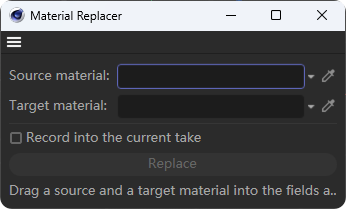
Usage
Open
Extensions > Material Replacer.Drag the source material — the one you want replaced — from the Material Manager into the first field.
Drag the target material — the one to use instead — into the second field.
The status line at the bottom shows the live match count, e.g. "12 texture tag(s) use the source material."
Click Replace.
When finished the status line reads "Replaced N texture tag(s)." Press Ctrl+Z to undo the whole operation in one step.
Take recording
With Record into the current take enabled, the replacement is written as an override in the current take instead of changing the scene. Switching back to the Main Take leaves the original materials intact.
Switch to a non-Main take in the Take Manager before you run it. The Main Take cannot store overrides — clicking Replace there prompts you to switch takes.
When the option is off, the replacement is an ordinary scene change and goes onto the undo stack.
Behavior
The scope is the whole document, not your selection. Any texture tag pointing at the source material is replaced regardless of whether its object is selected, hidden, or nested deep in the hierarchy. This is the key difference from dragging materials by hand.
Only Texture Tags are touched. Other tag types on an object are left alone.
Only the material link changes. Projection mode, UV offset, tiling, selection restriction and every other tag parameter is preserved.
The button stays disabled in these cases:
Status line |
Reason |
|---|---|
Drag a source and a target material into the fields above. |
One or both fields are empty |
Source and target material are identical. |
Both point at the same material — nothing to do |
No texture tag in this document uses the source material. |
Match count is zero |
The fields only accept materials. Dropping an object, a tag, or anything else clears the field automatically.
The status refreshes when materials are deleted. The dialog opens asynchronously and can stay docked in your layout; the match count updates as the scene changes.