Dimensions
Dimensions displays selected objects' dimensions in Cinema 4D's viewport, with multiple units shown together and independent X, Y and Z label toggles.
Dimensions
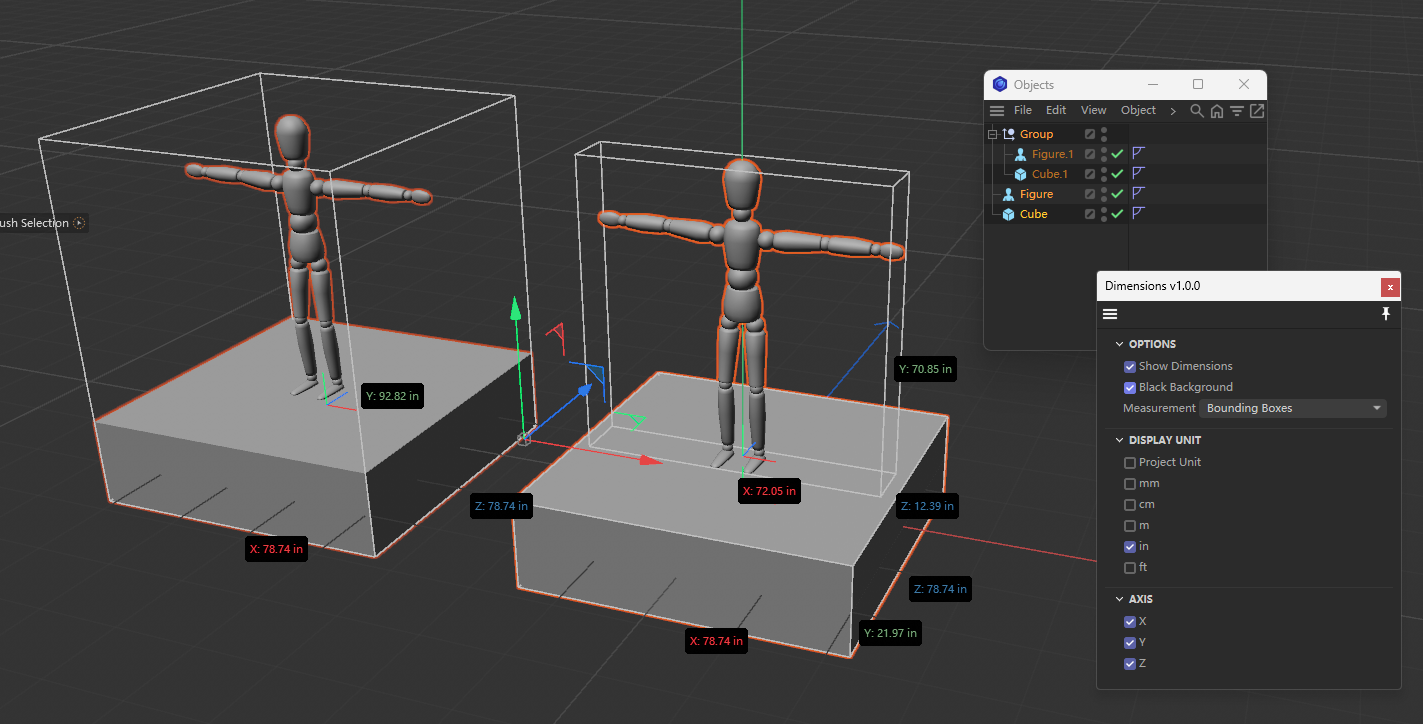
Dimensions displays selected objects' dimensions in Cinema 4D's viewport, with multiple units shown together and independent X, Y and Z label toggles.
Supports Cinema 4D 2023, 2024, 2025 and 2026 on Windows..
Usage
Select one or more objects and click Dimensions to display their dimensions. Click again to turn it off.
Click the gear beside the command to set the measurement mode, units and axis labels.
Dimensions update as you use Cinema 4D's native Move, Rotate and Scale tools.
Options
Show Dimensions: Toggle the bounding boxes and dimension text.
Black Background: Add a solid black background to dimension text for better readability.
Measurement: Bounding Boxes is suitable for quick checks. All Geometry Points calculates bounds from the actual geometry; high point counts increase the calculation cost.
Display Unit: Select any combination of Project Unit, mm, cm, m, in and ft. Project Unit is the default. Unchecking every unit leaves only the bounding boxes visible.
Axis: Toggle X, Y and Z dimension labels independently.
Pin: Keep the settings window open. When unpinned, it closes on losing focus. The window can be docked into Cinema 4D's layout.
Tips
Measurement directions follow Cinema 4D's World/Object coordinate state.
Object dimensions include visible child geometry. When a parent and child are both selected, they are measured separately.
Closing the settings window does not turn off dimension display.
Changelog
- 1.0.2 hot fix
- 1.0.0 2026/10/14 - Release